
Deploy Go Language
From subscribing on AWS Marketplace to a running, secured instance — plus day-2 operations.
Operating system
Ubuntu 20.04 / 22.04 LTS
SSH user
ubuntu
This guide covers launching and using Go Language from AWS Marketplace.
Prerequisites
- An AWS account with permission to subscribe to Marketplace products and launch EC2 instances.
- An EC2 key pair for administrative access.
Step 1 — Subscribe & launch
- On the AWS Marketplace listing, choose Continue to Subscribe → Continue to Configuration → Continue to Launch.
- Select an instance type and your key pair.
- Configure the security group (see the ports below) and launch.
Step 2 — Security group / ports
Open port 22 (SSH) restricted to your IP, plus any application ports.
Step 3 — Connect
ssh -i "your-key.pem" ubuntu@<PUBLIC_IP>
If you get a key-permission error: chmod 400 your-key.pem.
Step 4 — Access the application
To verify the installation, follow the below instructions
Step 1. Connect to SSH
- Open the Amazon EC2 console at https://console.aws.amazon.com/ec2/.
- In the navigation pane, choose Instances.
- Select the instance and choose Connect.
- Choose SSH Client
- Copy the SSH command and paste it into the terminal.
ssh ubuntu@publicIP -i [Path of key pair file]
If it shows an access denied message run the following command, then run the above command again to connect via ssh.
chmod 400 [Path of key pair file]
Once launched in the Amazon EC2 Service, please connect to the instance via an SSH client using the ec2-user with the key pair associated at launch. Once connected as the ec2-user user, you will be able to sudo to the root user.
Step 2. Verify the installation
Follow the steps to verify the Go installation
- Login with ssh
- Type the below command to check the version
go version
You will see the responses as shown below.
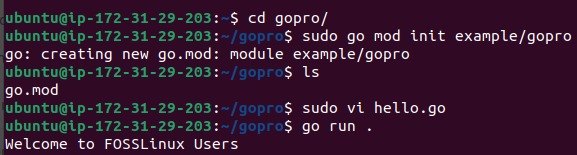
How to use Go language in the terminal
- After connecting with ssh.
- create a directory with the name of your preference using the following syntax
sudo mkdir gopro
- Next, navigate to the directory by issuing the following command:
cd gopro/
- After that, run the example module using the following command:
go mod init example/gopro
- After running the above command,
sudo vi hello.go
- After that paste the code in the file given below:
package main
import "fmt"
func main() {
fmt.Printf("Hello World\n")
}
- Run the below command:
go run .
- If you get the Hi, this is test script, Hello world in output then your Go Language is working properly.
To monitor and assess application functions
a. Navigate to your Amazon EC2 console and verify that you’re in the correct region.
b. Choose Instances and select your launched instance.
c. Select the server to display your metadata page and choose the Status checks tab at the bottom of the page to review if your status checks passed or failed.
For information about how to use the application, please visit: https://www.w3schools.com/go/
For detailed information about managing and requesting increased service please visit: https://docs.aws.amazon.com/general/latest/gr/aws_service_limits.html
Screenshots


Day-2 operations
Apply OS and package security updates on your normal cadence, snapshot the EBS volume for recovery, and forward logs/metrics to CloudWatch.
Support
Email support@ioanyt.com for help.